Reveal Home Decor Makeovers in Motion With an AI Video Generator
Discover how AI video generation can bring home decor transformations to life through motion, lighting, camera angles, and room reveals.
Table of Contents
Static images can illustrate a change, but they can't necessarily illustrate how change happens. Movement can show changes in furniture, changes in color, changes in lighting, textures, and styling. Movement can be used to direct the focus from an old corner to a completed interior. It can illustrate spatial relationships which are not apparent in the images themselves. Pippit offers a workflow to transform decor ideas into finished video. It may begin with prompts, images, links, files, or visual references. Each scene generated is planned to support the same design direction. This way, it is easy to mold short-form content for makeovers on social media.
Why Home Decor Makeovers Work Better as Moving Visual Stories
A still image shows one perspective; motion can show room changes. AI video generator can transform references into dynamic scenes with controlled movements. Slow camera movement can show furniture set-up in a room. A push-in can highlight a textured wall, lamp, rug, or decorative piece. Changes in lighting can convey the mood of a space. Transitions can be used to link an old arrangement with a new layout. Design inspiration is easier to understand when conveyed through short videos. Pippit can translate these ideas into content that is appropriate to today's social feeds. Clear direction, appropriate references, and review are essential for strong results.
Build a Strong Makeover Concept Before Generating the Video
Just a prompt is not enough to produce variations when the direction is not clear. First, establish the room, style, color, camera motion, mood, and conclusion. A Seeworld reference can be used to start on a certain creative direction visually. The reference should complement the atmosphere without taking the place of the specific room instructions. Scenes that retain architecture, materials, and decorative relationships are best served by a clear concept. It also increases the focus of regeneration.

Prior to generation, take into account the following:
- • Room: Choose a bedroom, kitchen, living room, office, or entryway.
- • Design direction: Define minimalist, rustic, modern, vintage, eclectic, or another coherent style.
- • Transformation: Identify the main changes between the beginning and ending.
- • Color story: Select dominant, secondary, and accent colors for visual harmony.
- • Camera movement: Choose pans, push-ins, reveals, overhead views, or close-ups.
- • Mood: Establish a warm, airy, dramatic, luxurious, calm, or cozy atmosphere.
- • Ending: Plan a finished-room reveal or a focused styling detail.
Steps to Reveal Home Decor Makeovers in Motion with an AI Video Generator
Step 1: Set Up Your Makeover Scene
1. Log in to Pippit using your Google or social media account before starting your home makeover.
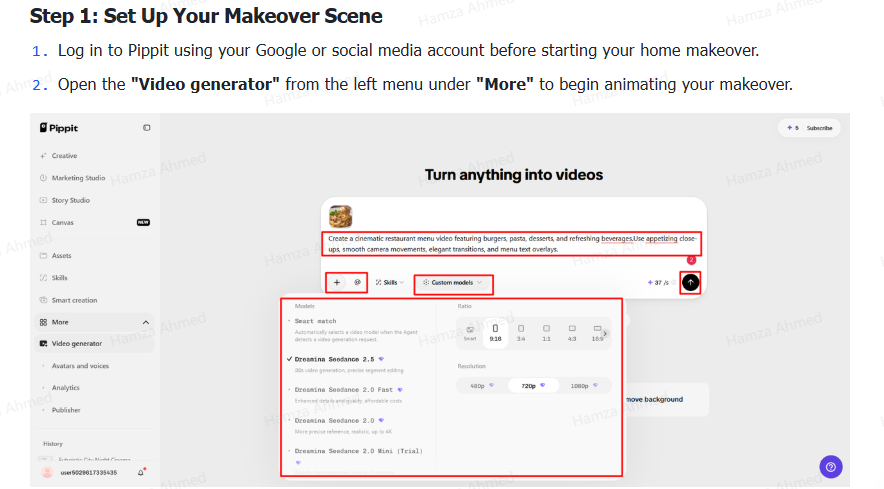
2. Open the "Video generator" from the left menu under "More" to begin animating your makeover.
Step 2: Animate the Room Transformation
1. Choose "Dreamina Seedance 2.5" as an AI model for creating detailed home makeover videos.
2. You can also select "Dreamina Seedance 2.0" for another approach to your room transformation.
3. Try "Dreamina Seedance 2.0 Fast" when you want another available model for generating your makeover.
4. Select "Dreamina Seedance 2.0 Mini" as another model option for your animated room transformation.
5. You can also choose "Dreamina Seedance 1.0" when selecting your preferred video generation model.
6. Alternatively, select "Auto Route", which smartly routes across video generation modes for better overall value.
7. Enter a detailed text prompt describing furniture, colors, lighting, layouts, and the desired transformation sequence.
8. Click "+" to upload reference images or videos from your device, phone, Dropbox, or link.
9. Select suitable assets when you do not have reference media available for your makeover project.
10. Choose an aspect ratio under "Ratio" and select your desired video quality under "Resolution".
11. Use "@" to tag media or photos inside your prompt for accurate visual referencing.
12. Confirm every setting, then click "Generate" to create your animated home decor makeover video.
Step 3: Polish and Share the Transformation
1. Preview your finished makeover to check transitions, room details, lighting, and overall visual consistency carefully.
2. Click "Regenerate" if the result needs another attempt or stronger alignment with your concept.
3. Click "Edit more" to refine your makeover using Pippit's available AI editing tools.
4. Customize captions manually, add text, and adjust size, color, alignment, filters, and effects.
5. Add background music, remove backgrounds, and fine-tune visuals to match your intended atmosphere perfectly.
6. Click "Download" to export your completed home makeover video directly onto your local device.
7. If posting immediately, click "Publish" to schedule and share your makeover across social media channels.
Prompt the Transformation Like a Designer and Director
Scenes are made more visually obvious by specific prompts and are less ambiguous. Include the layout, furnishings, surfaces, and character of the room. Describe any transformations throughout the transformation and the location of the transformations. Talk about wood, marble, linen, metal, glass, ceramics, or textured fabrics. Talk about the light of the morning, warm lamps, soft light, or intense lighting. Instructions for the camera can include panning, pushing in, wide reveals, overhead shots, or close-ups. Artwork, plants, books, cushions, rugs, lamps, and accessories can be identified using styling directions. End with the desired atmosphere for elegant, inviting, modern, calm, or vibrant; when multiple visual features need to be the same, detailed prompts help.
Design the Makeover Around Visual Beats Instead of One Long Scene
When every moment is purposeful, it's easy to follow a short makeover. Use a broad shot to set up the original room and layout. After that, show one big change – like a new wall colour or new furniture. Come within view to display materials, finishes, light, and decorative items. Throw in artwork, plants, books, cushions, rugs and accessories. Finish with a wide composition presenting the completed room. This evolution generates a visual sequence rather than disjointed shots. It provides an intuitive flow of editing decisions without the use of complicated timeline work. Pippit can generate, regenerate, and prompt-based refine this structure.
Refine Home Decor Videos for a More Convincing Finished Look
Watch all the scenes as things may change from scene to scene. Review furniture scale and ensure that large furniture still makes sense. Be alert for any unusual window, door, wall, ceiling, or dimension variations. Compare material and texture for consistent relationships of visuals. The decorative objects need to complement and not overpower the transformation. Captions can help to identify meaningful changes when viewers need quick context. Transitions should be smooth and not distract from the room itself. Correlate music and pacing to desired atmosphere. Recreate parts when continuity issues are distracting. Pippit can edit content that it generates without a traditional editing workflow.
Adapt One Makeover Video for Different Content Formats
A makeover idea can be adapted to multiple publishing formats with specific modifications. Vertical shorts can highlight the quick change and reveal. With short captions, you can create balanced compositions using square posts. Landscape videos can naturally convey broader interiors and room relationships. Pin-style content can highlight design aspects and materials. Design, layout, lighting, or choice of materials can be explained through educational clips. Promotional material may feature furniture, accessories, or decoration lines. Adapt ideas to different channels by adjusting ratio, captions, pacing, and presentation. Pippit enables streamlined adaptations in one workflow.
Conclusion
Good makeover videos have a great mix of direction, movement, and detail. AI generation can be used to speed up ideation and creation as long as prompts are specific. The reference assets are used for visual guidance, and the instructions are used for defining the transformation. The architecture, materials, lighting, and styling are consistent throughout the sequence, keeping the sequence connected. Review is still important, as scenes can have unexpected changes generated. Pippit provides a home decor workflow to turn home decor ideas into moving stories.